 Adria
PDF to Markdown for AI chats, LLMs and RAG
If you want an AI chat assistant or a RAG pipeline to read a PDF well, convert it to Markdown first and spend a few minutes checking it. Markdown keeps headings, lists and tables as plain text, so the model sees the structure instead of a long run of words. The checking part matters just as much: a converted file with an empty page or a broken table gives the AI the wrong facts, and it will answer confidently anyway.
Why Markdown works better than raw PDF text
Copying text out of a PDF, or extracting it with a basic tool, often gives you a flat stream. A heading looks like any other line, table columns run together, and the running header ("Annual Report 2024 · page 37") turns up every few paragraphs. In a RAG setup, that noise ends up inside your chunks and in the answers.
A good Markdown conversion fixes most of this:
- Headings become
#and##lines, which also give you natural places to split the file. - Tables become Markdown tables, so a number stays next to its column name.
- Watermarks, running headers and footers, and paper page numbers are left out, so the same line doesn't repeat in every chunk.
- Multi-column pages come out in reading order instead of jumping across columns.
Step 1: choose free or AI conversion
ToMarkdown gives you two choices and nothing else to configure.
| Free conversion | AI conversion | |
|---|---|---|
| Good for | PDFs with selectable text and simple layouts | Scans, tables, images, multi-column and complex pages |
| How it works | The open source Microsoft MarkItDown tool extracts text on our server, without AI | Each page is checked automatically; digital pages keep the PDF's own text, scanned pages are recognized |
| Images | Not kept | Cropped and saved, referenced from the Markdown |
| Limits | 10 MiB, 100 pages, no sign-in | 20 MiB, 200 pages, sign in and top up |
| Cost | US$0 | About US$0.005 per page on our measured documents |
| Kept for | 24 hours after upload | Until you delete it |
If you can select and copy the text in your PDF viewer and the layout is simple, try free first. If the PDF is a scan, or the parts you care about are tables, charts or figures, use AI. Not sure whether your file is a scan? See how to tell if a PDF is scanned.
Step 2: convert and look at the cost first
Upload the PDF in the ToMarkdown workspace. For AI conversion, the draft screen shows an estimated cost before anything runs. On six real documents (44 pages) the average was about US$0.005 per page, ranging from US$0.002 to US$0.009 per page by document. Budgeting US$0.01 per ordinary page leaves some room; dense pages and redos can cost more. The pricing page has the details.
Step 3: check and fix the converted file
This is the step people skip. In the workspace, each page sits next to its original, so you can switch between the original page, the reading preview and the Markdown source as you go. Here's what to look for:
| What to check | Why it matters for AI | How to spot it |
|---|---|---|
| Empty or near-empty pages | The AI never sees that content | Free mode shows "no extractable text"; the page is probably a scan |
| Reading order on multi-column pages | Mixed-up sentences turn into wrong answers | Read the first lines of each column in the preview |
| Tables | A shifted column pairs numbers with the wrong label | Compare a few rows against the original, especially merged cells |
| Key numbers, names, dates | These are what people ask about | Spot-check them on the original page |
| Headings | Chunking by heading only works if headings exist | Look at the page outline |
| Leftover boilerplate | Repeated notices pollute every chunk | Search the file for a phrase that repeats |
| Image links | images/p004_f1.png is just a path to a chat assistant | Decide whether to upload the images too (see below) |
| Formulas | Symbols are easy to misread | The preview renders common TeX; check against the original |
If a page looks wrong, redo just that page. A redo takes more care and may cost a bit more than the first pass. For small fixes, editing the Markdown by hand is often quicker.
Here's a real example. On page 13 of a salary white paper, the table had two header rows and a merged "segment" column. The conversion flattened the headers into column names like "fixed annual pay, 25th percentile" and took every number from the PDF's own text. One thing still needed a human eye: the merged "New energy" cell was written only in the first row, and the rows under it were left blank. If you're feeding that table to an AI, fill those cells in so each row stands on its own.
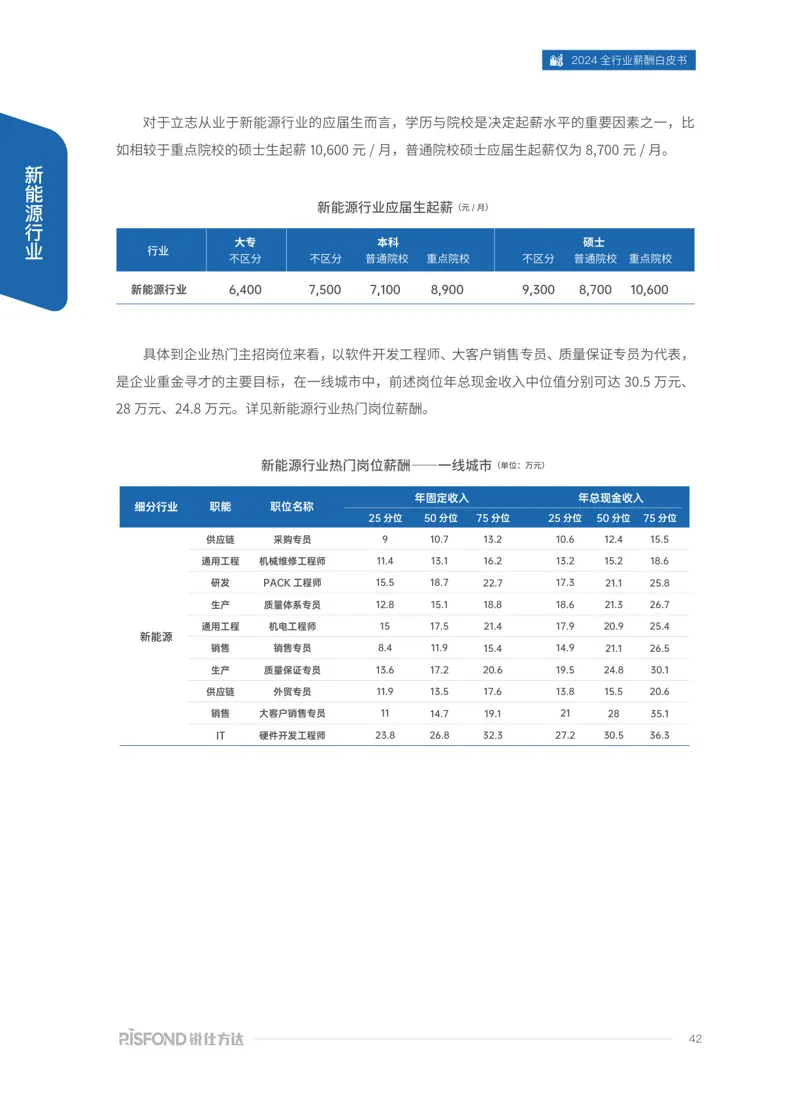
There's more on this kind of table in converting PDF tables to Markdown.
Step 4: decide what to do with images
AI conversion saves figures, photos and logos as image files and links them from the Markdown, for example . The ZIP download contains final.md plus an images/ folder with only the images the text uses.
A chat assistant reading the .md file sees the alt text and the path, not the picture. If a figure carries meaning, upload that image alongside the file, or write a sentence describing it in the Markdown. For a text-only knowledge base, the alt text is often enough. Keeping images when converting PDF to Markdown covers the ZIP layout in more detail.
Step 5: split by heading
For RAG, split the file at # and ## headings rather than every N characters, so each chunk keeps its own topic and table. Two things to know about ToMarkdown output:
- Paper page numbers are left out on purpose, and a sentence split across two pages is joined back together when you download. That makes cleaner text, but you lose "see page 37" references. If you need page citations, copy page by page from the workspace, where each page's result is kept separately, and note the page yourself.
- ToMarkdown never translates. A Chinese PDF gives you Chinese Markdown, even with the interface in English.
When ToMarkdown isn't the right tool
- Thousands of files or an automated pipeline. ToMarkdown is a web workspace, not a batch API. Run an open-source tool such as MarkItDown, Docling or Marker on your own machine instead. Our comparison of PDF to Markdown tools lays out the trade-offs.
- You need exact page citations. Since page numbers are dropped, a tool that keeps page markers will save you work.
- Documents that can't leave your machine. Free conversion runs on our server without AI, but it still means uploading. AI conversion sends page material to a model service. Use a local tool for anything you aren't allowed to share.
- One short text PDF. Copy-paste, or free conversion, is usually enough. You don't need AI for a three-page memo.
Questions
Can I upload the PDF straight to an AI chat instead?
Often, yes. Converting first helps when the PDF is long, scanned or full of tables, when you want to reuse the text in several places, or when you want to check what the AI is actually reading. With a Markdown file, you can see and fix the input.
Does ToMarkdown rewrite the text?
Not on digital pages. AI conversion decides the structure, but the words come from the PDF's own text layer. Scanned pages have no text layer, so they are recognized from the image and can be misread when the print is blurry.
How much does AI conversion cost?
On our measured documents, about US$0.002 to US$0.009 per page. Budget US$0.01 per page for ordinary pages; dense layouts, large tables and redos can cost more. The pricing page explains how billing works. Free conversion costs nothing if the PDF has selectable text.
What about watermarks and repeated headers?
AI conversion leaves out watermarks, running headers and footers, page numbers and empty backgrounds. Text fully covered by a watermark can't be recovered reliably. Free conversion doesn't remove them.
How long are my files kept?
Free documents are deleted 24 hours after upload, whether you're signed in or not. AI documents stay in your account (1 GiB of storage) until you delete them.